Build your research library
Collect papers and PDFs, check their details, and organize a personal reading collection with tags and filters.
On this page
Keep the papers you read in My library, independently of your writing projects. A paper can support several manuscripts without being copied into each project. Sharing a project does not give collaborators access to your Library. This is different from the Template library, which supplies starting files for a new writing project.
Sign in and open My library to get started.
Start with papers you already have#
- Open My library from the home screen or the menu at the upper left.
- Drop one or several PDFs onto the paper list. Keep the page open while the upload rows show progress. Alternatively, choose Upload PDF above the list. Each PDF must be at most 100 MB.
- Select a completed row and check the title, authors, year, and identifiers in the right panel. A recognized DOI or arXiv identifier can supply paper details; a filename alone is not reliable bibliographic metadata.
- Click a field to correct it, then save your changes. The detailed field list lower in the panel and the compact header describe the same paper.
If identification fails, the PDF can still be saved. Correct its details rather than uploading it again. If an upload fails, use its retry action while the page still holds the file. Reloading does not resume the upload queue; first check for a reference already created before selecting the file again. Use More actions → New reference above the list to add a paper without a PDF. It can be tagged and cited, then have a file attached later.
Before importing a large collection, open the first saved PDF and confirm that its contents match the corrected title, authors, and year. Upload completion alone does not verify the paper’s identity.
Find another paper#
Search above the list. Your Library results come first; external paper results let you inspect a paper before choosing Add. The right panel's References and Cited by tabs help you follow the literature; inspecting a result does not add it to your collection. External results and citation links may be partial or unavailable; they are not a complete literature review. You can still use saved papers, add a reference manually, or upload a PDF.
An eligible open-access PDF is fetched automatically. If its source refuses the download, use Visit source website, obtain a copy you are permitted to use, then Upload PDF. CorTeX cannot bypass a publisher's sign-in or access controls.
Import a bibliography#
To import an existing bibliography, choose More actions → Import BibTeX
above the list and select a .bib file of at most 5 MB. Review the proposed
references and confirm each batch of up to 100 entries until the dialog closes.
This imports bibliographic entries, not the PDFs on your computer. Check
unresolved entries after importing, especially author names and dates.
Organize a reading question#
For a review of measurement methods, create tags such as Methods, Baseline,
and Read closely. Tags are assigned explicitly; CorTeX does not create an
automatic classification of your papers. To create a tag, type its name in
the Tags facet's Search values field and choose Create “Methods” (or the
name you entered). Filtering by a tag does not assign it to later uploads.
Use Manage tags, or a tag’s context menu, to rename, recolor, or delete a
tag. Deleting a tag removes its assignments, not the papers; the latest tag
change offers Undo.
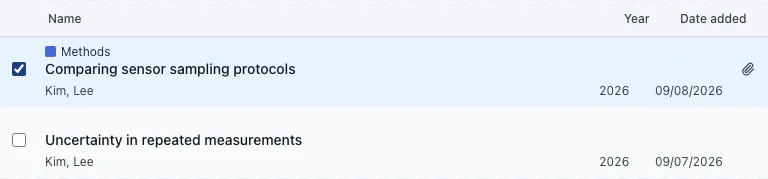
- Select papers using their checkboxes and use the tag action beside the Tags facet to apply a tag to the selection.
- Drag a tag from the left facet onto a paper. Dropping onto a selected paper applies it to the selected set; the highlighted rows preview the targets.
- Combine tags, authors, publications, and the publication-year range to narrow the list. No tags finds papers still waiting to be organized.
- Use the reset beside a facet to clear that facet only, or the overall filter reset to return to the full collection.
Sort by year to trace a method's development, or by date added to resume a
recent search. A useful check is to select Methods: the visible paper count
should shrink to the relevant set, without removing anything from your Library.
Remove papers without losing them accidentally#
Deleting a paper moves it straight to Trash. Open Trash at the bottom of the left panel to restore it. Permanent deletion and emptying Trash require confirmation; do not use them as a way to hide papers temporarily.
Trashed PDFs still use storage. User-uploaded PDFs normally share your account's storage allowance with project files; qualifying open-access copies are exempt. Linking an upload to a DOI alone does not exempt it. See storage limits before importing a large archive.
Your first paper is ready when its details are accurate, its PDF opens, and your chosen tag finds it. Continue with reading its PDF, or cite it in a manuscript when you are ready to write.