Read papers in your library
Move quickly between papers, choose a PDF edition, and resume reading with the PDF navigation rail.
On this page
Use the Library reader to skim a collection, then read a relevant paper closely. This is the reader for saved research PDFs, not the compiled PDF preview of a LaTeX project.
Sign in and save at least one paper with an attached PDF. Start with building your Library if your list is empty.
Skim without losing your place#
- Select a paper in the middle list. Its details appear on the right.
- With focus in the list, use the up and down arrows to browse papers.
- Press Enter, or use the compact PDF button, to open the default PDF in the right panel. Enter does nothing when the paper has no PDF.
- Use the reader menu at the upper right to go back to the paper details or switch to fullscreen for a longer reading session.
For example, filter to your Baseline tag, read each abstract, and open only the
PDFs whose experimental setup matches yours. You do not need to open a separate
project to read them.
Choose a reading view#
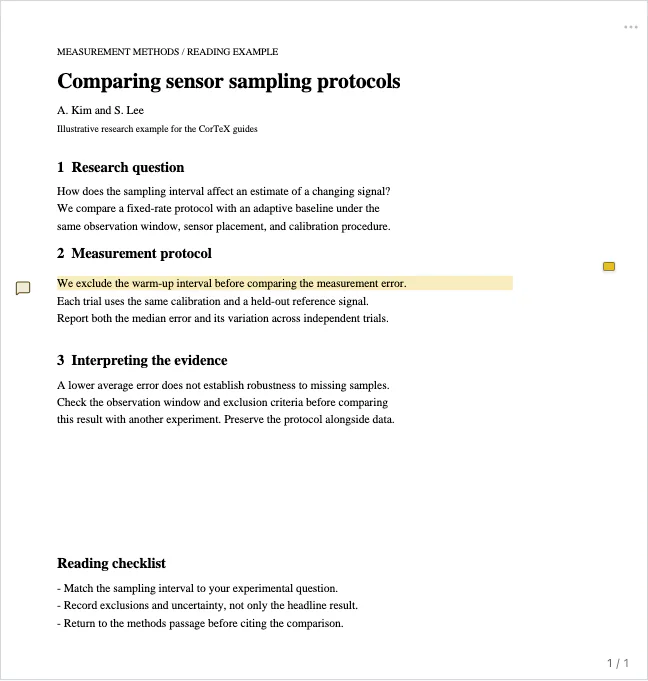
The upper-right reader menu contains zoom and page controls. Smart is the default: it reduces page margins to make the body easier to read. Choose Fit width or Fit page when you want to see the full page, especially if a marginal label or figure appears clipped in Smart mode.
Pages scroll continuously. In Fit page mode, Space and the left/right arrows also support page-by-page reading. The menu's keyboard-shortcut reference lists the other controls.
Find text in the PDF#
Ordinary browser text search is not a substitute for the reader's PDF search, especially for pages that are not currently on screen. Choose Find in PDF in the reader menu and search for a term such as “sampling interval”. With focus in the reader, Cmd+F on macOS or Ctrl+F elsewhere opens the same search; Enter and Shift+Enter move between matches. Check that the highlighted result is in the intended paper and PDF edition.
Choose the PDF edition#
One paper may have several PDFs, such as an accepted manuscript and a published version. Open the arrow beside the PDF button to choose another file or set the default. Check which edition you are reading before recording page numbers: different versions need not have the same pagination or wording.
Navigate by structure or evidence#
The narrow right margin combines the document's table-of-contents ticks with highlight markers. Move the pointer over it to reveal nearby section names. Focus a tick with the keyboard to reveal its label, then activate it, or click it to scroll there. On a touch screen, use the reader menu’s page controls or Find in PDF when hover labels are unavailable. A PDF without an embedded table of contents will not acquire one merely by opening it in CorTeX.
Hover or keyboard-focus a highlight group to inspect its entries, then choose one to return to that passage. Highlights spanning a page boundary appear as one entry at their starting position. These markers are useful for returning to a definition or an experimental limitation without searching the whole document again.
Resume and keep a portable copy#
Reading position and zoom are remembered per PDF in this browser. Reopening a PDF returns to the place you were reading; recent PDF thumbnails on the home screen provide another entry point. This is not cross-device position sync: clearing browser data or using another browser can lose the saved position.
Use the reader menu to download the original PDF or choose Export annotated copy. Annotations do not change the stored original. After exporting, open the copy in your intended PDF viewer and check it before sharing or archiving it.
If text cannot be selected or searched, the PDF may be a scan without a text layer. CorTeX does not perform OCR. Try a text-based edition when available; the paper's metadata remains usable without selectable PDF text.